DICOM Forwarding Setup Guide
Overview
This guide explains how to configure a DICOM workflow where K PACS sends images to Orthanc, and Orthanc automatically forwards those images to a DICOM Router. This setup is typically used in clinics or hospitals to centralize image routing and automate delivery to backend systems.
Requirements
| Component | Description |
|---|---|
| K PACS | Free DICOM viewer and sender |
| Orthanc | Lightweight DICOM server capable of auto forwarding |
| DICOM Router | Destination system that receives final images |
| Windows PC | For installing K PACS and Orthanc |
| Network Information | IP address, port, and AE Title of the DICOM Router |
 1. Install K PACS
1. Install K PACS
Download
- Visit the K-PACS official website.
- Download the latest version of K-PACS Lite.
Installation
- Run the installer.
- Follow the on-screen instructions.
- After installation, launch the K PACS Admin Tool.
2. Install Orthanc
2. Install Orthanc
Option A: Windows Installer
- Visit the Orthanc download page.
- Download the Windows installer.
- Run the installer and complete the setup.
Option B: Docker (Advanced)
If you prefer using Docker, you can run Orthanc using the command below:
docker run -p 8042:8042 -p 4242:4242 jodogne/orthanc3. Configure K PACS to Send DICOM Images to Orthanc
3. Configure K PACS to Send DICOM Images to Orthanc
- Open the K PACS Admin Tool.
- Navigate to DICOM Nodes.
- Select Add.
- Enter the following configuration:
- AE Title:
ORTHANC - IP Address:
localhost(or your Orthanc server IP) - Port:
4242
- AE Title:
- Save the configuration.
- Test the connection using C ECHO.
4. Configure Orthanc to Forward Images to the DICOM Router
4. Configure Orthanc to Forward Images to the DICOM Router
Locate Orthanc.json
File Locations:
- Windows:
C:\Program Files\Orthanc Server\Configuration\Orthanc.json - Docker: mount your configuration file or use environment variables.
Add the Following Configuration:
DicomModalities configuration:
"DicomModalities": {
  "DCMROUTER": [ "DCMROUTER", "localhost", 11112 ]
},
Forwarding configuration:
"ForwardDicom": [ "DCMROUTER" ]
Replace localhost and 11112 with the actual IP and port of your DICOM Router.
5. Enable Auto Forwarding for Web Uploaded Images (Optional)
5. Enable Auto Forwarding for Web Uploaded Images (Optional)
Create a Lua Script
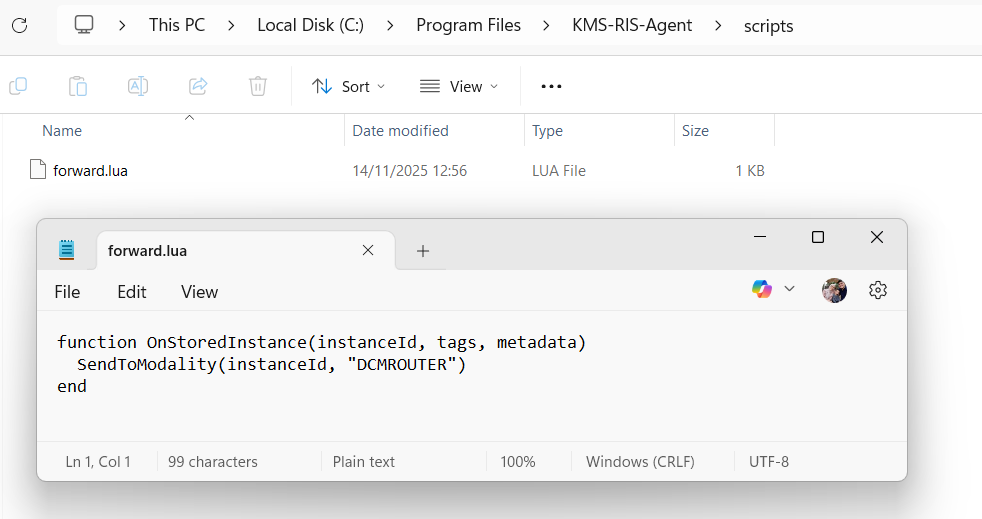
Save the script below as forward.lua in a directory such as:
D:\RIS_AGENT\scripts\forward.lua
function OnStoredInstance(instanceId, tags, metadata)
  SendToModality(instanceId, "DCMROUTER")
end
Add the Script to Orthanc.json
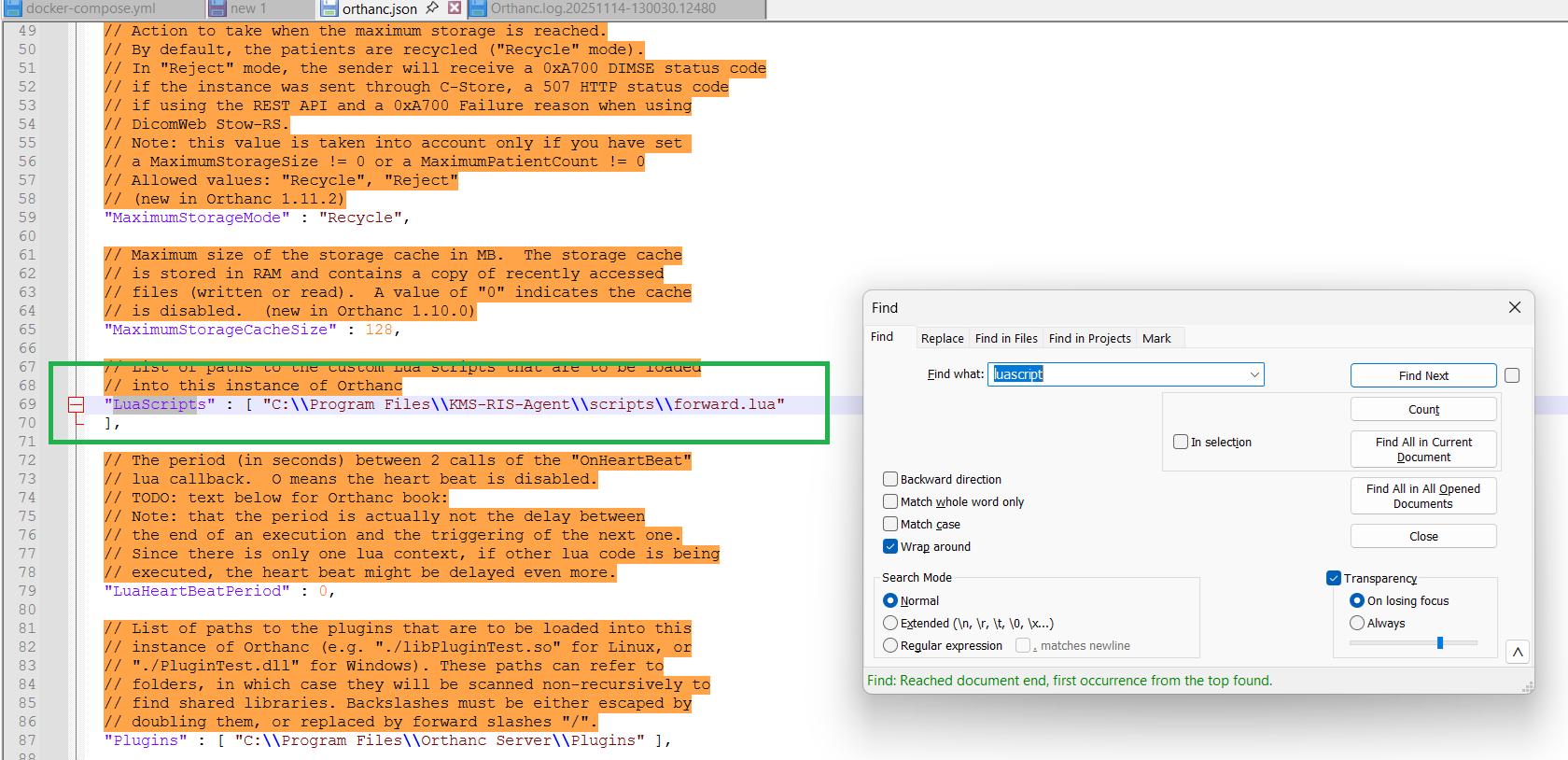
"LuaScripts": [ "D:\\RIS_AGENT\\scripts\\forward.lua" ]
Note: Use double backslashes for Windows paths.
6. Restart Orthanc
6. Restart Orthanc
Windows
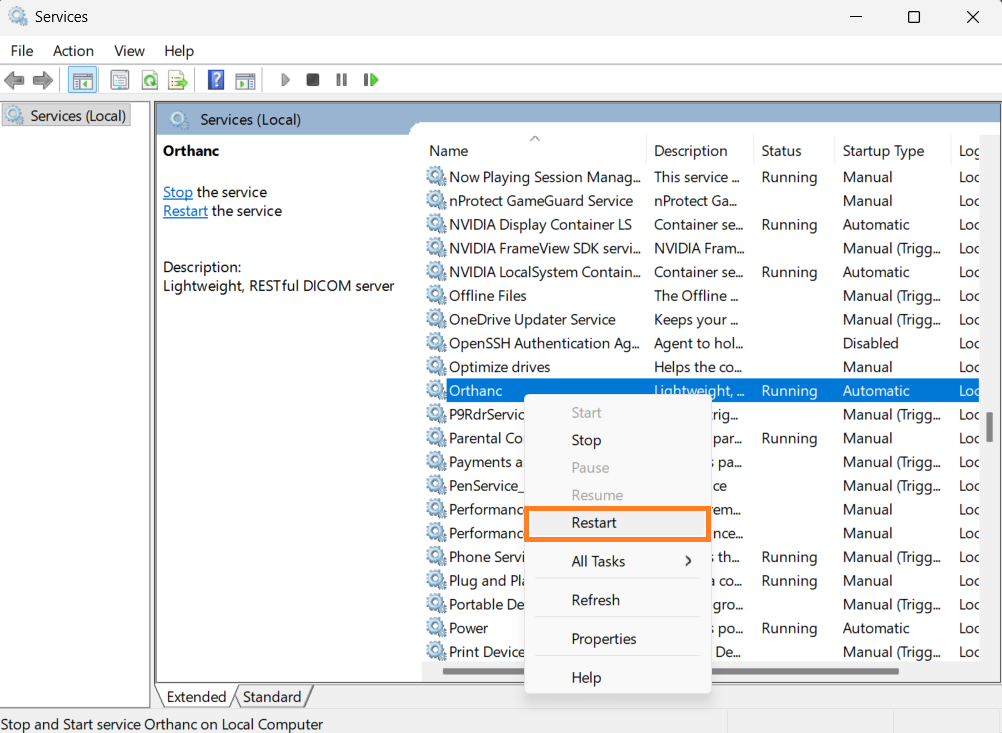
- Press Win + R and type
services.msc. - Locate Orthanc Server.
- Right click and select Restart.
Command Prompt (Run as Administrator):
net stop Orthanc
net start Orthanc
Docker
docker restart orthanc7. Test the Configuration
7. Test the Configuration
Test from K PACS
- Send a DICOM image to Orthanc.
- Verify the image appears in Orthanc via
http://localhost:8042.
Test Orthanc Forwarding
- Confirm Orthanc forwards the image to the DICOM Router.
- Check the router logs or viewer.
Troubleshooting
| Issue | Cause | Solution |
|---|---|---|
| Image not forwarded | Incorrect AE Title or network values | Verify AE Title, IP, and port in Orthanc.json |
| Web uploads not forwarded | Lua script missing or not loaded | Add Lua script and restart Orthanc |
| Router rejects image | AE Title mismatch | Confirm router configuration |
| No response from router | Connectivity or DICOM issue | Test using echoscu or storescu |
Related Articles
Apace Fingerprint Hardware Setup and SDK Integration
Overview The eHospital system supports fingerprint-based biometric authentication to improve patient identification accuracy and streamline validation processes such as claims verification. This feature requires both hardware setup and technical ...How to Setup and Configure LIS Agent
Overview Integration with medical laboratory equipment into an Electronic Medical Record (EMR) system is crucial for seamless data exchange, reducing manual input errors, and improving workflow efficiency in healthcare facilities. To address this ...KMS RIS Agent User Guide
What is the KMS RIS Agent? The KMS RIS Agent is an automated system that assists hospitals in managing radiology orders and medical images. It works as a digital assistant that: Automatically fetches new radiology orders from your Hospital ...WhatsApp Notification Integration Setup
Introduction The WhatsApp Notification feature in Ksatria eHospital enables hospitals and clinics to automatically send notifications to patients, such as: Registration confirmation Consultation reminders Prescription ready for pickup WhatsApp Credit ...WhatsApp Credit Purchase Guide
To send WhatsApp notifications, your hospital or clinic needs to maintain a sufficient WhatsApp Credit balance. This balance is used every time a notification is sent to a patient. This guide explains how to purchase WhatsApp Credits and what happens ...